
Streaming has become a popular way to enjoy entertainment, and IPTV is at the forefront of this trend. It offers a modern solution for accessing live TV, on-demand content, and more. Whether you’re using a Samsung Tizen or another platform, setting it up is straightforward.
Popular apps like IPTV Smarters Pro and IPTV Smart Player make the experience seamless. These tools provide multi-device support, ensuring you can watch your favorite shows anywhere. The process is simple, and we’ll guide you through it step by step.
With its compatibility across various devices, this technology brings flexibility to your viewing habits. From live sports to movies, everything is just a click away. Let’s dive into the installation methods for different models.
Key Takeaways
- Modern streaming solution for accessing live and on-demand content.
- Compatible with Samsung Tizen and other platforms.
- Popular apps include IPTV Smarters Pro and IPTV Smart Player.
- Offers multi-device support for flexible viewing.
- Simple installation process for various TV models.
What is IPTV and Why Use It on Your Smart TV?
Modern viewers are shifting to IPTV for its flexibility and features. Internet Protocol Television delivers content through the internet, unlike traditional cable or satellite TV. This technology allows you to stream live shows, movies, and on-demand content seamlessly.
One of the biggest advantages is access to international channels. Whether you’re looking for Arabic, English, or other languages, IPTV brings the world to your screen. Apps like IPTV Smarters Pro make it easy to watch multiple channels simultaneously, enhancing your viewing experience.
For premium models, 4K streaming ensures crystal-clear visuals. This is perfect for sports, movies, and shows that demand high-quality resolution. Plus, it’s more cost-effective than traditional subscriptions, saving you money while offering more options.
With its ability to stream content from anywhere, IPTV is a modern solution for today’s entertainment needs. It’s no wonder why so many are making the switch.
Choosing the Right IPTV App for Your Smart TV
Finding the perfect app to enhance your viewing experience is easier than ever. With a variety of options available, it’s important to pick one that suits your needs. Two popular choices are IPTV Smarters Pro and IPTV Smart Player. Both offer unique features that cater to different preferences.
IPTV Smarters Pro: Features and Benefits
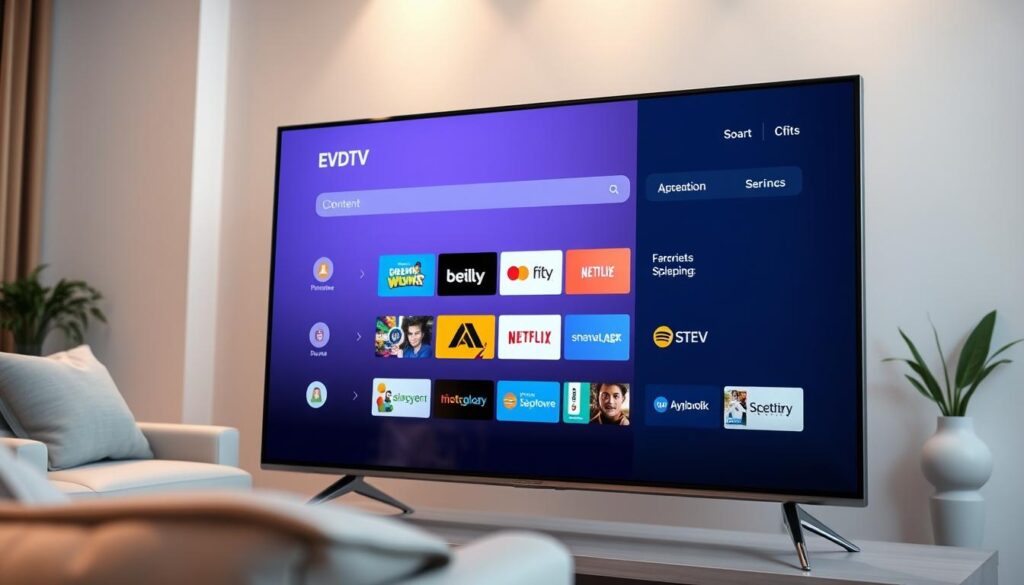
This app is known for its user-friendly interface and advanced features. It supports Chromecast, allowing you to stream content on larger screens. One standout feature is its multi-screen mode, which lets you watch multiple channels at once.
Another advantage is the Electronic Program Guide (EPG) integration. This helps you keep track of your favorite shows and plan your viewing schedule. The app also lets you organize your favorite channels into a personalized list.
IPTV Smart Player: What Sets It Apart
This player stands out with its support for over 40 file formats, including MP4, MOV, and AVI. It’s perfect for those who enjoy watching videos in various formats. The floating window feature allows you to multitask while streaming.
For added security, it offers playlist password protection. You can also customize the interface with dark or light mode, making it easier on the eyes. Premium features include an ad-free experience and unlimited playlists.
- Multi-screen mode vs. floating window: Smarters Pro lets you watch multiple channels, while Smart Player allows multitasking.
- Playlist security: Smart Player offers password protection for your playlists.
- EPG integration: Smarters Pro helps you stay organized with its program guide.
- Customization: Smart Player’s dark/light mode enhances viewing comfort.
- Premium features: Both apps offer ad-free streaming and unlimited playlists for a better experience.
How to Install IPTV on Tizen Smart TVs
Setting up your Tizen TV for seamless streaming is simpler than you think. Whether you have an older model or a newer one, the process is straightforward. Let’s explore the steps for both scenarios.
Manual Installation for Tizen TVs (2015-2018)
For older Tizen models, a USB drive is your best friend. Ensure the drive is formatted to FAT32, as this is essential for compatibility. Copy the installation file to the root directory of the USB to avoid errors.
Plug the USB into your TV and navigate to the installation menu. Follow the on-screen prompts to complete the setup. For J-series TVs, disable “App Auto Update” to prevent the app from being removed automatically.
Using the Samsung Apps Store for Tizen TVs (2019 and newer)
Newer Tizen models make it even easier. Open the Samsung Apps Store and search for the desired apps. Download and install them directly onto your TV. Keep in mind that some apps may have regional availability restrictions.
If you encounter issues, ensure your TV’s software is up to date. This often resolves common installation errors. For J-series TVs, double-check the settings to avoid app loss.
- Step-by-step USB installation for older Tizen models ensures a smooth setup.
- Locate official apps in the Samsung App Store for newer models.
- Troubleshoot common errors for J-series TVs by disabling auto-updates.
- Ensure the USB drive’s directory structure meets the requirements.
- Be aware of regional differences in app availability.
How to Install IPTV on Non-Tizen Smart TVs
Installing streaming apps on non-Tizen TVs is a straightforward process with the right tools. Whether you’re using a USB drive or syncing with a server, these methods ensure a smooth setup. Let’s explore the steps to get started.
Using USB for Manual Installation
For manual installation, a USB drive is essential. First, format the drive to FAT32 for compatibility. Create a directory named SmartIPTV on the USB to store the installation file. This ensures the TV recognizes the setup.
Plug the USB into your TV and navigate to the installation menu. Follow the on-screen prompts to complete the process. For E/ES/F/H/J4/J52 series, this method works seamlessly. Always double-check the directory structure to avoid errors.
Sync Server IP Address Method
Another effective method is syncing with a server. Activate Developer Mode on your TV to enable this feature. Enter the server IP address to link your device. This method is ideal for those who prefer a direct connection without USB.
For added security, use MAC address locking to protect your playlists. This ensures only authorized devices can access your content. This method is compatible with most modern series, except older models like the D-series.
- Create a SmartIPTV directory on your USB drive for manual installation.
- Use MAC address locking to secure your playlists.
- Follow specific steps for E/ES/F/H/J4/J52 series installation.
- Activate Developer Mode for server sync.
- Note that D-series and older models are incompatible.
| Model Series | Compatibility |
|---|---|
| E/ES/F/H/J4/J52 | Fully Compatible |
| D-series and older | Incompatible |
Configuring Your IPTV App for Optimal Performance
To get the most out of your streaming experience, proper configuration is key. Whether you’re adding playlists or fine-tuning settings, these steps ensure smooth playback and enhanced viewing.
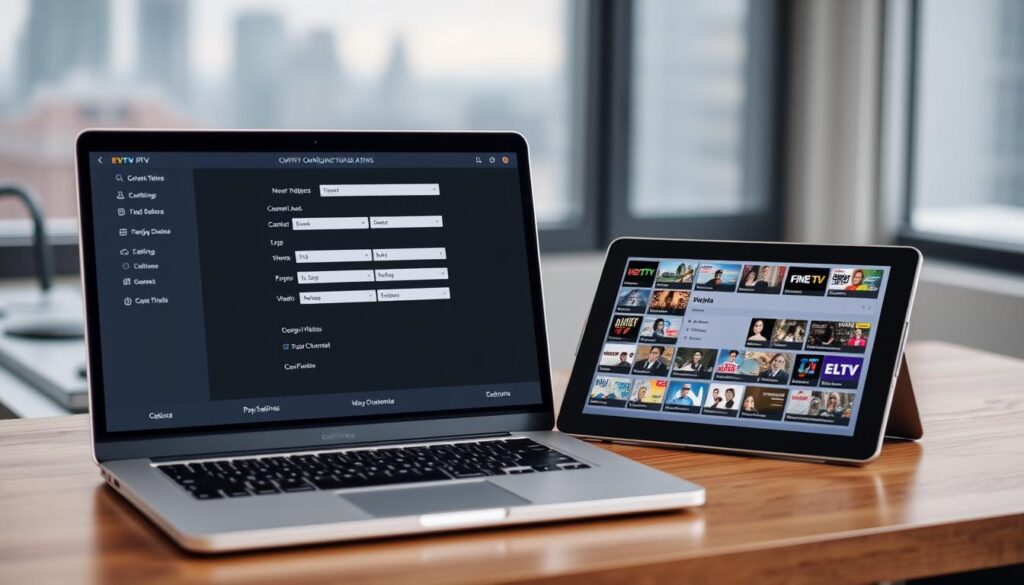
Adding Playlists and Channels
Start by importing your M3U file. You can upload it from local storage or use a URL for remote access. This file contains your list of channels and playlists, making it easy to organize your content.
For Xtream Codes users, log in with your credentials to sync your channel lineup. This method is quick and ensures all your favorites are ready to stream. Organize your playlists by grouping similar channels for easier navigation.
Adjusting Buffer Size and Audio Settings
Buffer size plays a crucial role in reducing interruptions. In the app settings, choose between auto or manual buffer adjustments. For slower connections, increase the buffer size to minimize lag.
Customize your audio experience by selecting tracks using the RED button. This is especially useful for multilingual content. For subtitles, use the AD/SUBT button to adjust language and display settings.
- Import M3U files from local storage or URLs for quick setup.
- Log in with Xtream Codes to sync your channel lineup.
- Adjust buffer size based on your internet speed for smoother streaming.
- Use the RED button to switch audio tracks for multilingual content.
- Customize subtitles with the AD/SUBT button for better accessibility.
Streaming IPTV Content on Your Smart TV
Enjoying your favorite shows and movies has never been easier with advanced streaming features. Whether you’re mirroring content or using multi-screen options, these tools enhance your viewing experience. Let’s explore how to make the most of these features.
Using Chromecast with Streaming Apps
Chromecast allows you to mirror content from your mobile device to your TV seamlessly. Simply connect your device to the same Wi-Fi network and select the Chromecast option in your app. This feature is perfect for sharing videos, photos, or even presentations.
Adjust the aspect ratio using the P.SIZE/TOOLS buttons for optimal viewing. This ensures the content fits your screen perfectly, whether it’s a widescreen movie or a standard TV show.
Multi-Screen and Floating Window Features
Some apps support up to four screens simultaneously, letting you watch multiple channels at once. This is ideal for sports fans who want to keep an eye on several games. The floating window feature allows you to multitask while streaming, such as browsing or chatting.
Access your channel history with the DOWN arrow to revisit recently watched shows. For a more immersive experience, activate 3D mode using the TTX/MIX button. This feature brings your content to life with enhanced depth and clarity.
| Feature | Multi-Screen | Floating Window |
|---|---|---|
| Number of Screens | Up to 4 | 1 |
| Use Case | Watching multiple channels | Multitasking while streaming |
| Activation | App settings | App settings |
These features make streaming more flexible and enjoyable. Whether you’re watching live sports or catching up on your favorite series, these tools ensure a seamless experience.
Troubleshooting Common IPTV Issues
Encountering issues while streaming can be frustrating, but solutions are within reach. Whether it’s buffering problems or playlist loading errors, understanding the root cause can help you fix them quickly. Let’s explore some common challenges and how to resolve them.
Fixing Buffering Problems
Buffering can stop your viewing experience in its tracks. One effective solution is to reset the default buffer settings. For Samsung devices, switching to Auto mode often resolves this issue. Adjusting the buffer size manually can also help, especially for slower internet connections.
Another tip is to check your network stability. Ensure your device is connected to a strong Wi-Fi signal. If the problem persists, consider upgrading your internet plan for smoother streaming.
Resolving Playlist Loading Issues
If your playlist won’t load, MAC address locking can prevent unauthorized access. This feature ensures only your device can access the content. Additionally, modifying the User-agent header can resolve provider-specific issues. Here’s how:
- Access your app’s settings and locate the User-agent option.
- Enter the required information provided by your service provider.
- Save the changes and restart the app.
For EPG loading failures, ensure your app is updated to the latest version. Clearing the cache can also help refresh the program guide.
Audio-video sync issues can be fixed by selecting the correct audio track. Use the app’s settings to switch tracks until the problem is resolved. These simple steps can stop common streaming problems and enhance your viewing experience.
Conclusion
Setting up your device for seamless streaming is easier than you might think. Whether you’re using a Tizen or non-Tizen model, the steps are straightforward and user-friendly. From manual USB installations to syncing with servers, there’s a method for every generation of TVs.
Choosing a reliable service provider is crucial for a smooth experience. A stable connection ensures uninterrupted access to your favorite shows and live events. Don’t forget to explore advanced features like recording and multi-screen viewing to enhance your setup.
Keep in mind that regional restrictions may apply, so always check content availability in your area. For the best results, ensure your app and device software are up to date. With the right configuration, you’ll enjoy a premium streaming experience tailored to your needs.
For more detailed guidance, visit our step-by-step installation guide.